

I have wanted to create professional video ads in Canva for my blog for a long time and be skilled in it to generate money. I neglected the customers’ opinions and ideas, so I was wrong. I had to learn digital marketing from the customers.
Let me tell you that trustworthy and be professional in what you do is the best thing to add. According to the Trustpilot blog, reviews are a way to encourage trust in your business. 92% of customers are more likely to recommend a company they trust.
After reading this blog post, you will learn how to create attention-grabbing video ads and know where to begin.
Canva video is user-friendly
Canva video is user-friendly because it has a drag-and-drop feature that allows you to easily create designs without any prior design experience.
It also has a wide variety of templates, images, and fonts that you can use to create professional-looking designs.
How to create professional video ads in Canva
You may wonder how to create branded videos and where to begin? I understand your frustration, but there is hope, and today I’ll show you how to create professional video ads in Canva.
I try to choose the free option. [Except for transitions and animations.]
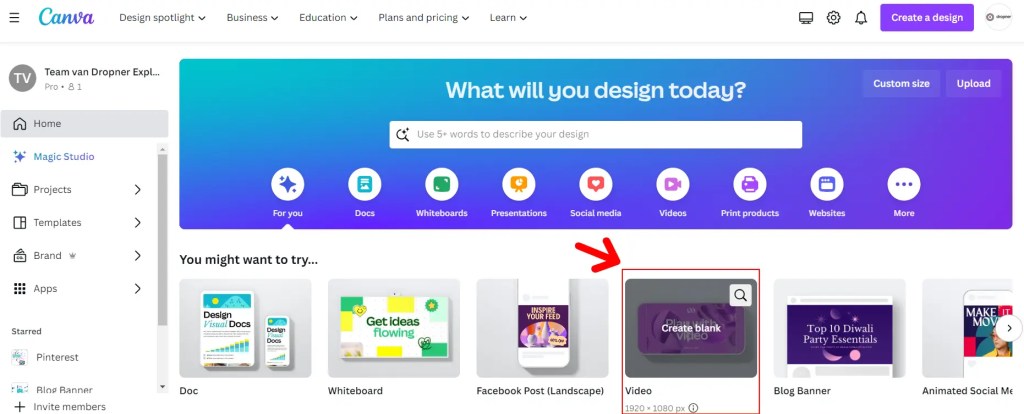
- The first thing you have to do is go to Canva.com.
- Choose the video canvas.
- Follow my steps.
What you will be making.
These tips will guide you to creating a successful and professional video advertisement in Canva.
We use a well-known and existing ice cream brand, so if you are hired to make such a video, you already have the right skills.
So, use these tips and improve your chances.
Tips to follow along
To follow this, I advise you to subscribe to Canva Pro. You will have no limits for your projects. Search for the word Magnum, to make it simpler use my examples.


These are without background. Or go to Background Remover to remove the white background.
Start
To start, choose the video format 1920 x 1080px.
Create a background
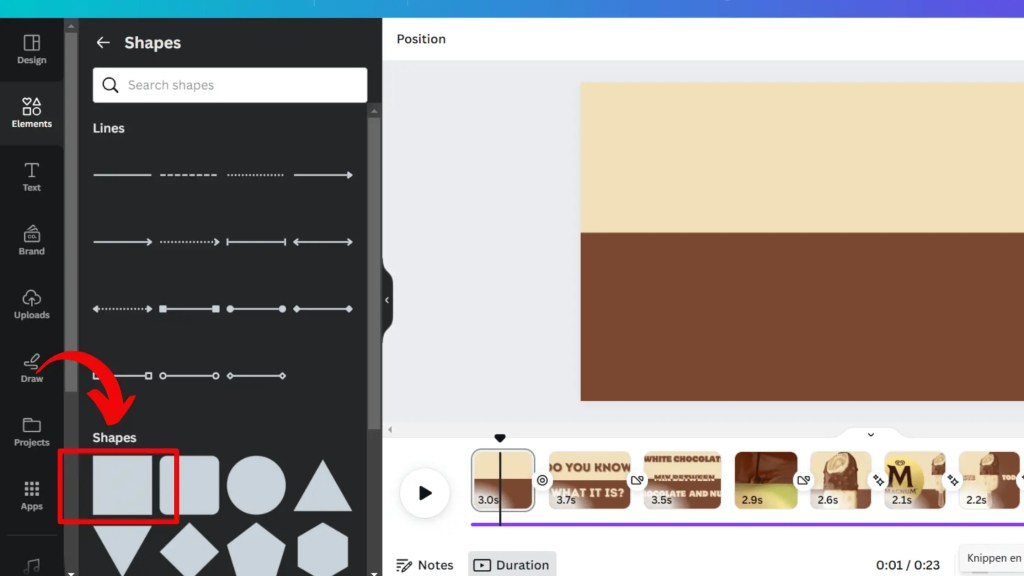
The next step is to create a background in the brand colors.
Show timing
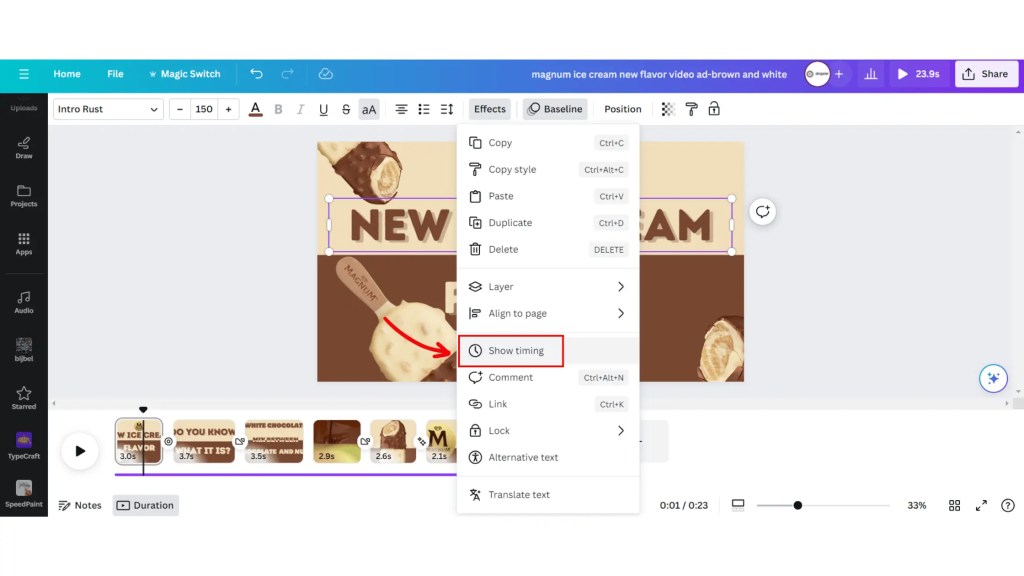
To show the timing, left-click on your mouse and scroll halfway. The goal of this effect is to create a smooth overflow.
Edit timing
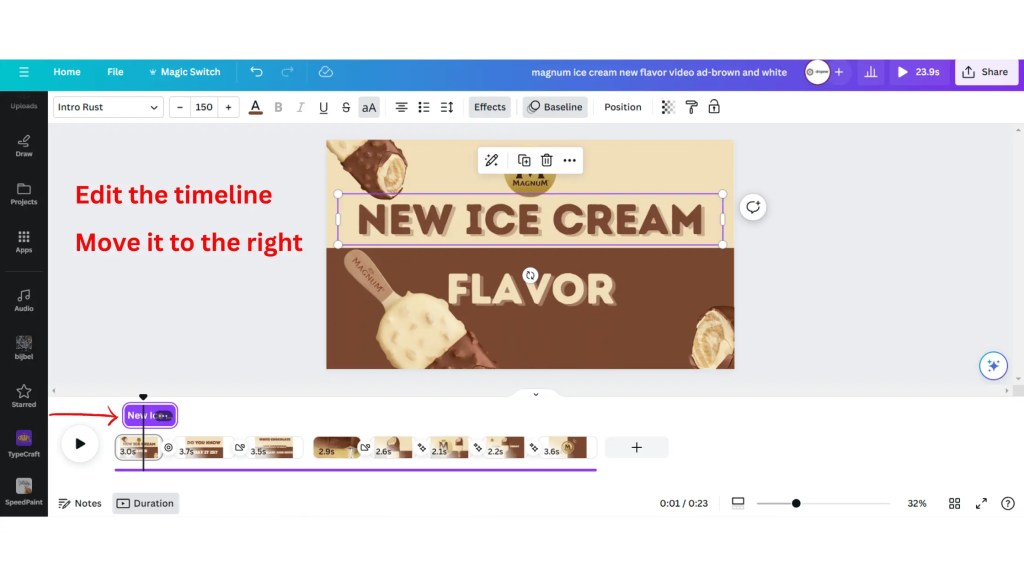
In this stage, you have to review your entire clip. The benefit of this:
- Check where the overflow makes sense.
- To make a striking and logical story.
Choose Baseline animation on text
The baseline effect is to create a smooth poppin’ and a slide effect aligning to your design grid. This effect can improve the typography of your designs and make them consistent throughout your video project.
I have used the Canva Pro features to get into the details of changing speed and the direction of the animation.

Choose typewriter effect
In this stage, I used the typewriter effect to sync the text with the music and to highlight the curiosity about the brand product.

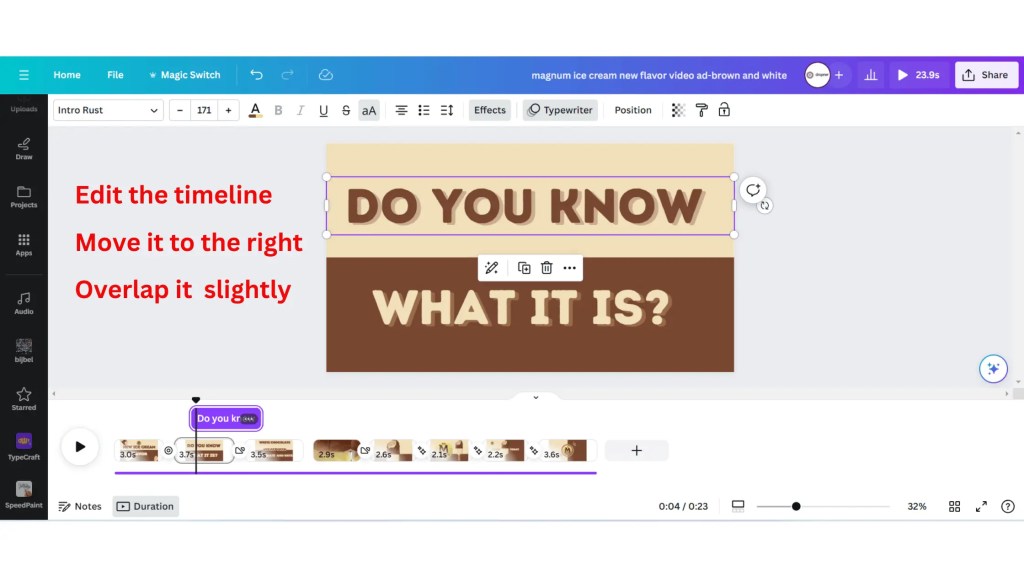
Edit the timeline and overlap it
Now, you must create the overlap. The overlap is the text or image that fades out upon transition.
Create inner text
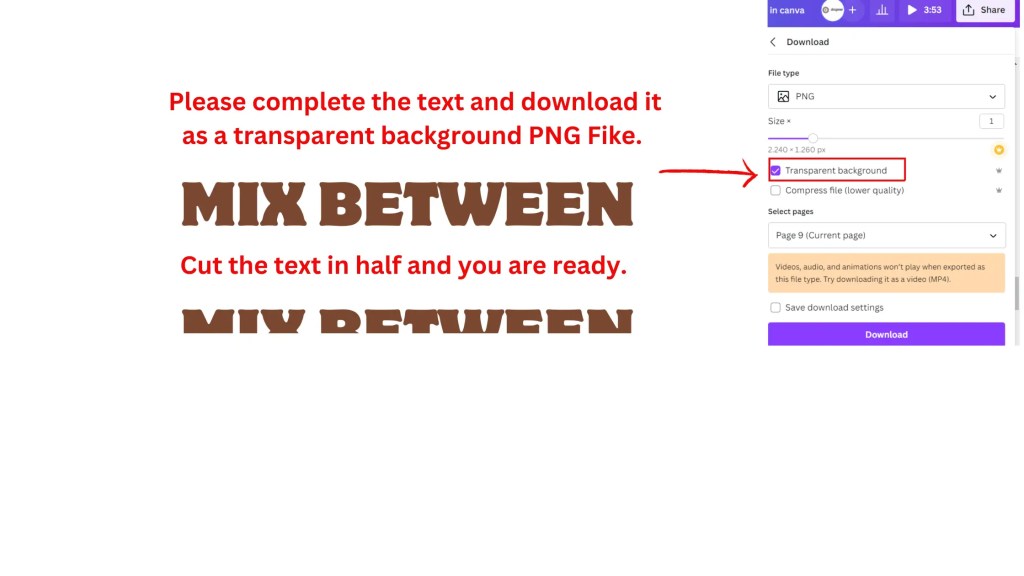
Now, it is time to create the text mix between. Create the text first and download the file with no background. If you do not have the background remover from Canva, go to the background remover site mentioned earlier.

Steps to Create Inner Text Effect
The inner text is a graphic design technique to make text appealing and relatable.
Here are the steps you must take to create it:
- Create the text.
- Download the text without a background [transparant file.]
- Place the text on top and scale it down to a half [use the Canva handles.]
If you get stuck with this, please check the GIF file and my video. My GIFs and videos will help guide you through the design process.
Settings
In this Canva video, you get my other settings for this video project.
The final result
Follow DropnerBlog.com on YouTube to see my other promo videos, and while you are there like, comment, and share my videos.
Conclusion
In conclusion, making videos for your clients starts with pro-looking content. Your best bet is to look for examples and try to recreate them. Come up with ideas for striking text that are engaged and target-oriented. Also, keep in mind to don’t forget that you have to transfer the trust to the customers. So deliver quality videos, and look at realistic examples and statistics.
Key points:
- Canva is easy to use.
- With Canva Pro, you unlock premium features.
- Background remover.
- Drag-and-drop system.
- Create striking text [my recommendation is to view branded examples or promotional content.]
- Build trust, and look for trustworthy sources.
My suggestion
First, view brand-targeted advertisements to get a good idea of how a brand uses product placement. With my examples of Canva videos, you are in the right direction.
Share your thoughts and experiences in the comments if this post is helpful to you share it with your friends.

 Dropner Graphic Explainer