
Disclosure: I earn a commission from RankMath SEO if you install it on your WordPress site at no cost. Please read my disclosure page.
Introduction to: Why is it important to improve images on WordPress?
You ask why it is important to improve images?
Every WordPress blogger wants the images placed on each blog post to load quickly. The reason is very simple: posting optimized images that load quickly can lead to more user convenience and more traffic.
There are different formats that WordPress accepts, like WebP, JPEG, PNG, and GIF. The next question is how optimized images can improve your performance and user experience.
In this blog post, you will learn which format is best to choose, what the benefits are, and its purpose.
Summary
- In this blog post, you will read about the options and techniques available for compressing images.
- Additionally, the advantages and disadvantages will be discussed.
- And you will learn why it is important to improve images.
Importance of optimizing image formats:
The right image format is crucial for web design and digital content. Choosing the appropriate format can significantly impact website performance. JPEG, PNG, GIF, and WebP formats each offer unique benefits. Using the right format can lead to faster load times, improved SEO, and better website functionality.
Understanding and implementing image format improvement is essential in modern web design and content creation.
WebP
WebP is a modern image format that provides superior lossless and lossy compression for images on the web. Using WebP, webmasters and web developers can create smaller, richer images that make the web faster.
WebP lossless images are 26% smaller in size compared to PNGs. WebP lossy images are 25-34% smaller than comparable JPEG images.
Benefits of WebP files.
- WebP is a modern image format that provides superior lossless and lossy compression for images on the web.
- Using WebP, webmasters and web developers can create smaller, richer images that make the web faster.
- WebP lossless images are 26% smaller in size compared to PNGs. WebP lossy images are 25-34% smaller than comparable JPEG images.
- WebP files are compatible with most browsers, allowing for widespread implementation of this format.
Disadvantages of WebP files.
WebP files offer superior lossless and lossy compression for web images, but they also have several main disadvantages:
- Limited browser support:
- Most modern web browsers are compatible with WebP. However, older browsers do not fully support this format. This limitation can impact the user experience for those visitors.
- The complexity of alpha transparency:
- Despite offering better compression for transparent images compared to PNG. Managing alpha transparency in WebP files is not as straightforward. This can lead to complications.
- Conversion challenges:
- Converting existing images to WebP can be challenging. Maintaining consistent quality throughout the process is also difficult. This is especially true when you deal with a large volume of images.
Despite these drawbacks, WebP remains a popular choice for image improvement. It offers significant benefits in terms of file size reduction. Additionally, it enhances web performance.
For who is WebP for?
WebP is for graphic designers, arts, content creation, and image-based web placement blogs and sites. Improve images on WordPress later.
JPEG
JPEG files are perfect for photos. The JPEG format is the most well-known type of format. It seamlessly integrates with any search engine.
Benefits of JPEG files.
- JPEG files are globally recognized and compatible with most browsers, software, and apps.
- The small files allow for quick transfer and online access thanks to ‘lossy’ compression.
- Post-processing is easier because the white balance and saturation are set with the shutter’s click.
Disadvantages of JPEG.
- ‘Lossy’ compression saves space, but very compressed images lose some quality. Images with sharp edges and lines lose some of that sharpness during compression.
- If you lose so much data, this can lead to posterization. Posterization is the loss of gradual transitions between colors. This makes the colors too abrupt and makes the image look blocky. Artifacts – aliasing at the edges, light effects, or noise – severely reduce image quality. You can avoid the potential pitfalls of artifacts and posterization by saving photos as RAW.
For who is JPEG for?
JPEG is for photography and general imagery it is best for portfolio photography-type blogs and general content creation. Improve images on WordPress later.
PNG
PNG stands for Portable Network Graphics and is a widely used image file known for its high quality and versatility. For more details, visit this link.
Benefits of PNG.
PNG files have several advantages that make them popular for various applications:
- Lossless Compression: PNG files use lossless compression, which means no data is lost when compressing the image. This ensures that the image quality is preserved regardless of how often the file is opened or saved.
- Transparency Support: PNG files can support transparent and semi-transparent backgrounds, making them ideal for graphic design and web images.
- Wide Color Palette: PNG files can show up to 16 million colors, making them suitable for detailed and colorful images]
- Unpatented: PNG is an open file format without licensing fees. It can be opened and edited in virtually all image editing software.
- High Quality: PNG files are ideal for images with text, graphics, and other detailed elements. They preserve image quality after multiple edits.
Disadvantages of PNG
PNG files have some drawbacks, despite their high quality and transparency.
- They are often larger than JPGs, leading to longer loading times and increased storage usage, posing problems for web applications.
- The format does not support animations, making it less suitable for dynamic content.
- Additionally, there are limitations on color depth, which can affect the rendering of complex images.
These factors can negatively impact the user experience and performance of websites.
For who is PNG?
It is ideal for:
- Web designers: PNG files support transparency, making them essential for creating web graphics with elements that need to blend seamlessly into a webpage background.
- Graphic designers: PNG’s lossless compression preserves image quality, making it perfect for detailed illustrations, logos, and graphic designs.
- Website owners: PNG images can be optimized for the web without losing quality, ensuring fast loading times and visually appealing websites.
GIF
GIF stands for Graphics Interchange Format, a popular image format known for its ability to support animations along with static images.
Benefits of GIF Files:
- Animation Support: GIFs can contain multiple frames, allowing for short animations, which makes them ideal for creating engaging and dynamic content.
- Wide Compatibility: GIF files are supported by all modern web browsers and most devices, making them easily shareable and accessible across different platforms.
- Lossless Compression: GIF uses lossless compression techniques, ensuring that images do not lose quality when saved multiple times.
- Transparency Support: GIFs can have transparent backgrounds, which is helpful for layering images and creating visually appealing graphics.
- Simple to Create and Share: GIFs can be created easily using different software and online tools, making them popular for memes and quick visual communications on social media.
Disadvantages of GIF Files:
- Limited Color Palette: GIFs are limited to a maximum of 256 colors per frame, which can result in a loss of detail and quality in more complex images or photographs.
- File Size: Animated GIFs can become quite large, especially if they contain many frames or high-resolution images, leading to longer loading times compared to static images or other formats like WebP.
- Lack of Audio: GIFs do not support sound, which can limit the effectiveness of animations if audio is needed for a complete presentation.
- Not Ideal for High-Quality Images: For detailed images or photographs, formats like JPEG or PNG are generally preferred due to their superior quality and color depth.
For Who is GIF For?
GIF files are commonly used by:
- Social Media Marketers: Due to their engaging and shareable nature, GIFs are widely used in social media campaigns and posts to grab attention and encourage interaction.
- Content Creators: Bloggers, YouTubers, and other content creators may use GIFs to summarize content, highlight key points, or add humor to their posts.
- Graphic Designers: GIFs are often used in graphic design to create eye-catching animations for websites or promotional materials.
- Online Communicators: GIFs are popular in instant messaging and social media platforms for expressing emotions, jokes, or reactions without having to type.
In summary, GIFs are a versatile tool for animated content and engaging users, but they come with limitations in color depth and file size. It’s essential to consider the context and audience when deciding to use GIFs in digital communication.
Things to Keep in Mind
When choosing the most suitable image format for different types of content, consider the following tips:
- JPEG for Photographs: JPEG files are ideal for photographs and general imagery. They are widely compatible with most browsers, software, and apps. This makes them perfect for portfolio photography-type blogs. They are also great for general content creation.
- WebP for Web Placement Blogs: WebP is a modern image format. It provides superior lossless and lossy compression for web images. It is suitable for graphic designers, arts, content creation, and image-based web placement blogs and sites. But, it’s important to note that it is not fully supported by older web browsers.
- PNG for High-Quality and Detailed Images: PNG files are known for their high quality and versatility. They are suitable for images with text, graphics, and other detailed elements. Additionally, PNG files are ideal for graphic design and web images due to their support for transparent and semi-transparent backgrounds.
- GIF for Animated Images: GIF files are designed for animated images. They are suitable for content that requires animation, like short clips or simple animations.
Consider the unique features and advantages of each image format. By doing so, you can make informed decisions about which format is most suitable for different types of content.
How to improve images on WordPress:
Now let us shift our focus to improving images yourself with this step-by-step guide on how to compress and optimize images without losing quality:
The recommended sizes for different types of images in WordPress are:
- Blog post images: 1200 x 630 px.
- Headers: 1048 x 250 px.
- Thumbnails: 150 x 150 px.
- Logos: 200 x 100 px.
- Featured images: 1200 x 900 px (landscape) or 900 x 1200 px (portrait).
- Background images: 1920 x 1080 px.
You can use the mentioned plugins and online tools to help you, but I recommend using the ideal size first.
Resizing images is crucial for website speed. Properly sized images load faster, improving visitor experience and SEO.
Search engines rank site speed, and using the right image sizes can enhance performance. Smaller image files lead to quicker indexing, potentially improving search result rankings and user satisfaction.

Many free online tools and plugins exist. These resources can help you improve your SEO. They can also make your site load faster by shrinking your image sizes.
Reduce image size for free with this software!
There are tons of ways you can resize images. In the next parts, we will discuss the tools available on your computer. We will also explore online programs that you can use for this.
Free online tools
If you want to quickly reduce the size of the images on your WordPress website, you have options. You can use the next tools.
Windows Paint
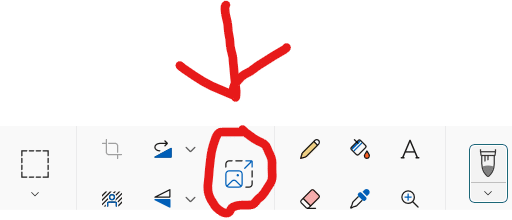
On a Windows computer, you can just use Paint. Open up Paint and tweak the canvas size. You’ll find options at the top left to resize the image by percentage or by pixels.
Other free optimizing tools
I personally like to reduce files and improve images using Photopea. These are the steps you need to take to resize the images in Photopea.
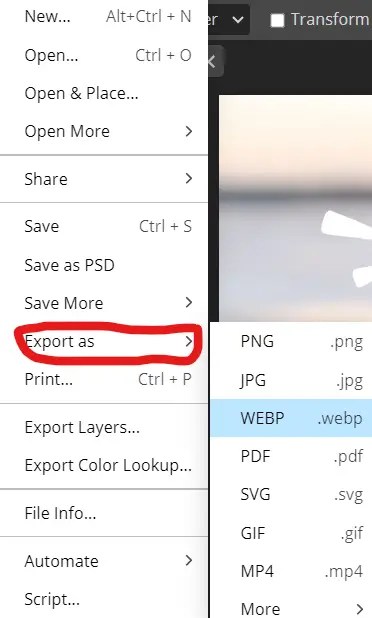
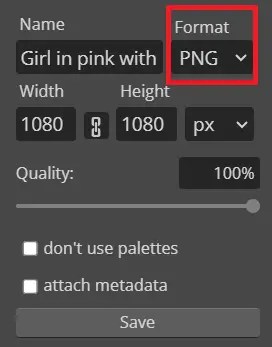
Reduce the quality bar and switch up the format for the best quality.
WordPress plugins
WordPress provides various plugins for optimizing images for SEO. It also allows resizing images and converting them to the right format.
On this blog, I use the WordPress plugin called Imagify. This converts every image into WebP files, optimizing 97% of all images for SEO.

Do you need to know more about how to improve images on WordPress go here.
A while ago, I tested and compared a free image compressor converter with other free compression techniques. Read the case study here.
Best practices for optimizing image and improvements:
When naming your image files, use descriptive keywords and separate words with hyphens. Incorporate relevant keywords related to the web page content. This improves search engine visibility and the likelihood of images appearing in search results.
Here are some more tips to help you improve your image file names:
1. Be Descriptive and Specific: Use clear and specific keywords that describe the image content. For example, instead of “IMG1234.jpg,” use “sunset-over-beach.jpg.”
2. Use Hyphens: Separate words with hyphens (e.g., “blue-mountain-landscape.jpg”) to improve readability for both search engines and users.
This file name is good.
This file name is wrong.


3. Avoid Keyword Stuffing: While it’s important to include keywords, avoid overloading the file name with too many. Keep it natural and relevant.
4. Match the Page Content: Make sure the keywords in your image file name are relevant to the web page content. The keywords should match the web page content. This is important. The web page content is where the image is displayed. This helps search engines understand the context.
5. Use Lowercase Letters: Stick to lowercase letters in your file names. This will help avoid any issues with case sensitivity on different servers.
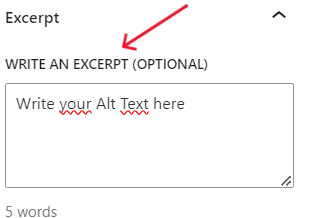
6. Include Alt Text: Along with the file name, use descriptive alt text for your images. This provides more context to search engines and improves accessibility.
7. Compress Images: While not directly related to file naming, compressing images can improve page load times. This improvement is beneficial for SEO.
8. Adding Captions: Captions give essential context about what is happening in the image. They include who is in it, where and when it was taken, and sometimes why certain things are happening. This helps viewers understand the image better and prevents misinterpretation.
9. Enhanced Engagement: Captions can make images more engaging. They can tell a story or provide interesting details that are not at once obvious. This can evoke emotions and create a stronger connection between the viewer and the image.
Using these tips will help boost your website’s SEO. They will also increase the likelihood of your images showing up in search results. Do you have any particular images you’re focusing on optimizing?
Go for lazy loading
By implementing lazy loading, you can prioritize loading images effectively. They will load only when they are about to come into view. This reduces the initial load time of the page.
This can greatly benefit users with slower internet connections or those accessing the website from mobile devices.
Furthermore, search engines favor websites with faster load times. Incorporating lazy loading can also have a positive impact on SEO efforts.
Overall, integrating this technique can lead to a more efficient and enjoyable browsing experience for visitors.
Here are 4 lazy-loading plugins.
1. a3 Lazy Load.
– The a3 Lazy Load plugin improves page load times. It does this by loading images and other content on-demand, as the user scrolls down the page. It enhances user experience and can positively impact SEO.
2. Lazy Load by WP Rocket. (Premium Plugin)
– This plugin offers an intuitive way to implement lazy loading for your WordPress site. It optimizes the loading of images, iframes, and videos, contributing to faster page load times.
3. BJ Lazy Load.
– With BJ Lazy Load, you can efficiently load images and iframes only as they enter the visitor’s viewport. This reduces initial page load time and improves the overall performance of your website.
4. Optimole.
– Optimole is a comprehensive image optimization plugin that includes lazy loading functionality. It automatically applies lazy loading to your site’s images, ensuring a seamless and optimized browsing experience for your visitors.
Conclusion:
Every WordPress blogger wants to improve images and enhance performance without relying solely on plugins to turbocharge load speed. Although WordPress compression plugins are helpful, it’s recommended to use one.
The remaining improvements can be achieved using free tools to boost image quality and speed. This approach also offers SEO benefits, including better user experience and reduced loading times.
To recap the key points, improve images on WordPress using:
- Read dropnerblog post about compressing images.
- Free online tools.
- Recommended sizes.
- One compression plugin. (The best).
- Test for SEO benefits.
- Test and research.
- Use one SEO WordPress plugin (Rank Math SEO).
Have you improved images on WordPress? Share your experiences in the comments!
Type, I agree that compression improves images on WordPress and contributes to speeding up your website.
Give it a like or share. Show some love!

 Dropner Graphic Explainer