
Written By Bonny Isselt.
Introduction to the 5 best top tips for optimizing your WordPress site:
Optimizing a WordPress site is super important for making it perform better and giving users a great experience. This means making the site faster, ensuring it looks good on mobile, optimizing images, and setting up caching. When you do these things, it makes users more engaged, boosts your search engine rankings, and keeps your customers happy.
Optimizing image formats, compression, caching techniques, and choosing the right plugins and themes are key factors in achieving this goal.
In this blog post, we will look at the 5 best top tips for optimizing your WordPress site for making your WordPress site better.
Overview
- Choosing the right format and the difference between WebP, PNG, JPEG, and GIFs.
- You will learn how WebP can lower load speed.
- Furthermore, you get the main SEO guidelines for choosing plugins and themes.
1. Optimize Image Formats:
The WebP, PNG, JPEG, and GIF formats are all commonly used for images on the web, but they have distinct characteristics that make them suitable for different use cases.
| Popular Image Compressors |
|---|
| TinyPNG. |
| Optimizilla. |
| Compess2Go. |
| Freeconvert. |
| Short pixel. |
But there are many image compressors out there.
I advise you to go for one that you can understand what you can save and the potential quality loss. Personally, I started with something simple like that of websiteplanet.com which compresses PNG and JPG files. Read the details of websiteplanet.com in this blog post.

WebP: Developed by Google, WebP is a modern image format that provides both lossy and lossless compression. It supports transparency (alpha channel) and offers superior compression compared to JPEG and PNG. This can result in faster loading times for web pages, making it an efficient choice for web images.
All the images are optimized for WebP formats using the plugin called Imagify. We saved 612 MB and optimized 97% of the images.

PNG: Portable Network Graphics (PNG) is a lossless compression file format, which means it retains image quality while maintaining a relatively small file size. It supports transparency and is well-suited for images with text, line art, and graphics with sharp transitions.
JPEG: Joint Photographic Experts Group (JPEG) is a popular image format for photographs and complex images. It uses lossy compression, meaning it sacrifices some image quality to achieve smaller file sizes. JPEG doesn’t support transparency, but it excels at compressing photographic images while retaining good visual quality.
GIF: Graphics Interchange Format (GIF) is widely used for simple animations and low-color images, as it supports animation and transparent backgrounds. However, it has limitations in color depth and is not suitable for complex images or photographs.
Each of these formats has its advantages and drawbacks, and choosing the right format depends on the specific requirements of the images and the intended usage on the web.
SVG stands for Scalable Vector Graphics. It’s a file format used for vector images, which are scalable and can be easily manipulated without losing quality.
SVG files can be uploaded to WordPress only using plugins. One of the best plugins for handling SVG files is Safe SVG. This plugin allows you to safely upload SVG files to your media library, providing the ability to preview and edit them directly within the WordPress admin area.
Another option is the “SVG Support” plugin, which enables SVG uploads and offers advanced features for managing SVG files within WordPress. These plugins help ensure the secure and efficient handling of SVG files on your WordPress site.
| Benefit | Description |
|---|---|
| Better Compression | WebP provides both lossy and lossless compression, resulting in smaller file sizes without significant loss of image quality. This leads to faster loading times for web pages, improving the overall user experience. |
| Transparent Support | WebP supports transparency (alpha channel), making it suitable for images with transparent backgrounds or overlays. This feature enhances the visual appeal of web content. |
| Efficient for Web Images | Due to its superior compression compared to JPEG and PNG, WebP is efficient for web images, especially when used in combination with caching techniques and optimized themes. |
| Overall Performance | By using WebP, websites can significantly improve performance by reducing the file sizes of images, resulting in faster load times and reduced bandwidth usage for both mobile and desktop users. |
| Search Engine Optimization | Faster loading times, improved user experience, and reduced bounce rates resulting from the use of WebP can positively impact search engine rankings, contributing to better visibility and traffic for the website. |
2. Image Compression:
Compressing images is important for optimizing websites. Making image files smaller significantly speeds up loading, which is crucial for keeping users happy and boosting search engine rankings. Big images can really slow down the website and annoy users – not cool.
Especially with more people using mobile phones for browsing, it’s vital to think about how image size affects data usage and page loading. Smaller images make mobile browsing smoother and can lead to more interactions and sales.
To sum it up, compressing images is a big deal. It directly affects website speed and functionality, impacting user satisfaction and the website’s discoverability. That’s why using image compression techniques is a must for website owners and developers, demanding a serious approach.
Recommended tools and plugins for image compression.
- TinyPNG: This tool provides efficient compression for PNG images, reducing file sizes without sacrificing image quality.
- Optimizilla: Optimizilla is a user-friendly online image compressor that allows for bulk optimization of images in various formats, including JPEG and PNG.
- Compress2Go: Compress2Go offers easy-to-use image compression with the option to adjust compression levels to suit specific requirements.
- Freeconvert: Freeconvert provides versatile image compression services, supporting a variety of image formats and offering customizable compression settings.
- ShortPixel: ShortPixel is a powerful image optimization plugin for WordPress, allowing for automatic compression of images with minimal quality loss.
For WebP optimization, the Imagify plugin is recommended. This tool efficiently converts images to the WebP format and offers significant compression benefits, leading to faster loading times for web pages.
Additionally, for handling SVG files, Safe SVG and SVG Support are recommended plugins, that provide secure and efficient management of SVG files within WordPress.
These plugins and tools can significantly contribute to optimizing images on a WordPress site, ultimately enhancing performance and user experience.
3. Leveraging Caching Techniques:
Caching can help reduce server load and speed up website performance by storing a static version of the site’s content. This allows the server to serve that static content to users instead of generating it dynamically for each request.
Implementing caching plugins and techniques for WordPress sites involves choosing a reputable caching plugin such as W3 Total Cache or WP Super Cache, configuring the plugin settings based on the website’s specific needs, leveraging browser caching, and using a content delivery network (CDN) to cache static content.
Additionally, optimizing images, reducing server requests, and minifying CSS and JavaScript files can further enhance the effectiveness of caching for WordPress sites.
WP Rocket is a premium WordPress caching plugin designed to enhance the performance and speed of websites. It offers features such as page caching, cache preloading, static file compression, and images on request, allowing for faster loading times and improved overall user experience.
WP Rocket is primarily designed for self-hosted WordPress sites, which are associated with WordPress.org. On the other hand, WordPress.com offers its own built-in caching and performance optimization features.
If you’re running a self-hosted WordPress site, WP Rocket can be a valuable tool to enhance your website’s speed and user experience.
Additionally, it includes features for minification of HTML, CSS, and JavaScript files, enabling optimization of website speed and performance.
As for the price, the cost of WP Rocket varies depending on the licensing option chosen. The pricing structure includes options for a single website, three websites, and an unlimited number of websites.
Users can opt for an annual subscription or a one-time payment with the possibility of renewal. The plugin also offers a 14-day money-back guarantee to ensure customer satisfaction. For the most current pricing details, it’s recommended to visit the official WP Rocket website or contact their sales team directly.
4. Choosing the Right Plugins:
Let’s delve deeper into the impact of plugins on site speed and performance. Plugins can significantly affect the loading time and overall performance of a website.
When numerous plugins with extensive functionalities are installed, it can lead to increased server load, longer page load times, and potential conflicts between the plugins. This can result in a poor user experience and hamper the site’s search engine ranking.
To mitigate these issues, it’s crucial to select lightweight and well-coded plugins. Opting for lightweight plugins that are specifically designed to minimize resource consumption and streamline performance can greatly help in avoiding bloat.
Well-coded plugins follow best practices, such as minimizing database queries, utilizing efficient coding techniques, and implementing proper caching mechanisms, all of which contribute to improved site speed and performance.
Guidelines for choosing plugins.
When choosing plugins, consider evaluating the following aspects to ensure they are lightweight and well-coded:
- Reviews and Ratings: Check the reviews and ratings of the plugin to gauge user satisfaction and reliability.
- Active Installations: Higher active installations often indicate a more trustworthy and frequently updated plugin with fewer compatibility issues.
- Developer Reputation: Research the reputation of the plugin developer to ensure they have a track record of creating efficient and well-maintained plugins.
- Performance Impact: Where possible, use performance monitoring tools to assess the impact of a plugin on the site’s speed and overall performance.
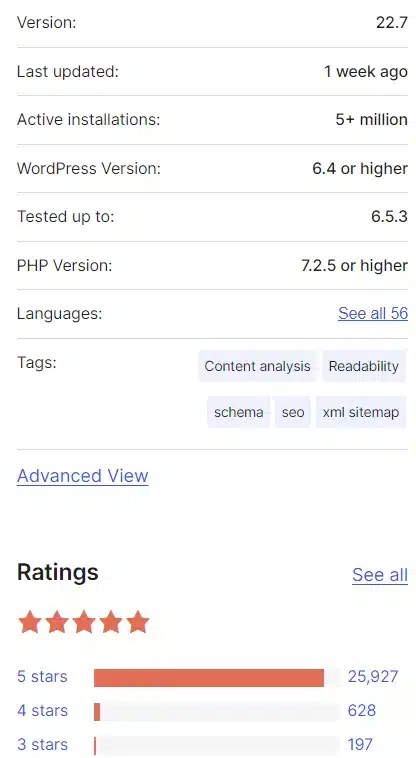
By prioritizing lightweight and well-coded plugins, you can maintain a lean and efficient site, ultimately providing visitors with a smooth browsing experience and fostering better SEO outcomes.
Read this → blog post about what the best WordPress plugins are.
5. Selecting Optimized Themes:
When searching for fast and responsive WordPress themes, it is essential to consider reputable sources. Some of the top recommended sources include ThemeForest, StudioPress, Elegant Themes, and Themify.
Read my blog post about WordPress SEO Themes.
These platforms offer a wide range of professionally designed themes that prioritize speed and responsiveness. Additionally, the WordPress Theme Directory is another reliable source, providing a collection of free themes that are regularly reviewed and updated to meet the latest standards.
By exploring these reputable sources, WordPress you can find themes that not only enhance the visual appeal of your websites but also prioritize performance and user experience.
Conclusion:
To sum up the key points discussed in this blog post. To speed up any WordPress site use:
- The right format.
- Explore image compression sites.
- Use well-coded plugins.
- Use catching plugins.
- Use SEO well-coded and designed WordPress themes.
By optimizing your site, you can enhance user experience, reduce bounce rates, and improve on search engine rankings.
Implementing these suggestions can lead to faster page loading times, which is crucial for retaining visitor interest and engagement.
On the long term, optimizing a website for better performance can contribute to overall customer satisfaction and loyalty.
Have I forgotten something about WordPress optimizing? Mention it in the comments do you find this helpful leave a like. Also, let me know in the comments if you agree with this and have how it goes with optimizing images. (Type → agree).

 Dropner Graphic Explainer
Great information
Regards
LikeLike
Thank you, I appreciate your comment and thanks again for the read!
LikeLike
JpgCrush.com to optimize JPEG images
LikeLike
“Absolutely great content! Truly appreciate the effort and creativity you’ve put into this. Keep up the amazing and inspiring work!”
LikeLike
Your posts really help identify things we’ve never thought about with our sites. Thanks!
–Scott
LikeLike
Thanks!
LikeLike
Nice post🌅🌅
LikeLike
Thank you.
LikeLike
Welcome dear friend 🌅
LikeLike