

Written by David Macullum @ CodeFish. ✅ Edited and Published by Bonny Isselt.
Ever wondered why some product videos feel just right, while others are a mess? You know the ones: tiny thumbnails, autoplay chaos, confusing navigation. You try to watch, but end up frustrated. Yeah, it happens.
Videos aren’t optional anymore. People expect to see products working. They want demos, tutorials, reviews. And guess what? The way you lay out your video gallery can make or break the whole experience.
A messy gallery can slow pages, confuse users, even kill sales. But a well-placed, well-thought-out gallery? It can make users stay longer, trust your brand, and hit that “Add to Cart” button faster. This isn’t hype. It’s real UX. Let me show you how to make your gallery shine.
Table of Contents
- Why Video Gallery Layout Matters in eCommerce
- Understand User Intent Before Designing the Layout
- Choose the Right Video Gallery Structure
- Featured Video with Supporting Thumbnails
- Slider or Carousel Layout
- Grid Layout for Large Video Collections
- Prioritize Thumbnail Design
- Make Navigation Obvious and Effortless
- Optimize for Mobile First, Not Desktop First
- Ensure Responsive Video Scaling
- Avoid Autoplay Pitfalls
- Use Video Controls Thoughtfully
- Balance Performance with Visual Richness
- Keep Visual Hierarchy Clear
- Integrate Videos Seamlessly with Product Images
- Provide Context with Titles or Labels
- Support Playlists Without Overwhelming Users
- Maintain Consistency Across Pages
- Accessibility Matters More Than You Think
- Measure and Iterate Based on User Behavior
- Align Video Gallery UX with Conversion Goals
- Role of WooCommerce Product Videos in Modern Stores
- Conclusion
Why Video Gallery Layout Matters in eCommerce
Think about it. You land on a product page. There’s a video, maybe three, maybe ten. Some look promising, others blurry, small, hidden. Which do you watch first? Which do you ignore? That’s exactly why layout matters.
A strong gallery reduces confusion. It guides eyes where they need to go. Works on phones, tablets, desktops. Makes scrolling and swiping intuitive. And it helps users understand products faster. Slow, cluttered, inconsistent galleries? They don’t just frustrate, they cost money.
Understand User Intent Before Designing the Layout
Before you design anything, ask: Why are people watching these videos? Some want to see how it works. Others want a quick comparison. Some just want to check size, fit, quality. And some are straight up curious. Your layout needs to answer those questions fast.
❗Tip: Make the most important video obvious. Let supporting videos be secondary. Users should get the gist immediately, then explore if they want more. No guessing. No hunting. Just a clear, smooth experience.
Choose the Right Video Gallery Structure
Featured Video with Supporting Thumbnails
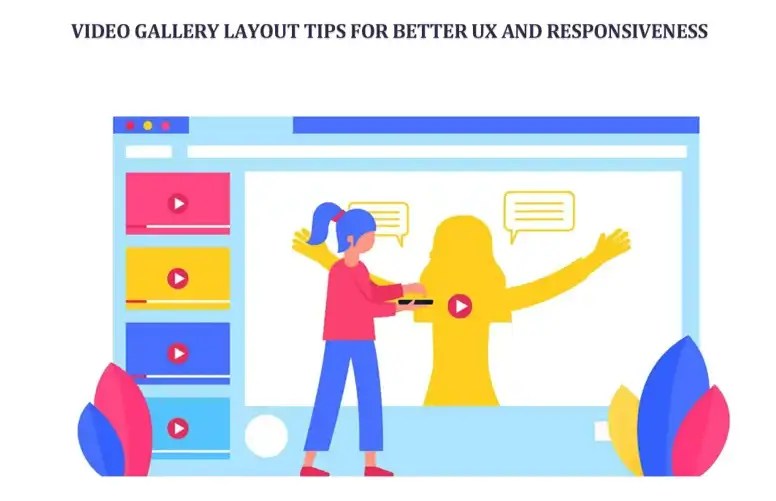
This is classic. Works like a charm. One big video grabs attention. Thumbnails below or beside show options. Simple, clean. People get it instantly.
Think of it like a movie poster. Big poster first, smaller trailers underneath. Users know exactly where to click. And it works for product demos, explainer videos, hero content. Basically, anything important.
Slider or Carousel Layout
Sliders are fun. They save space. You can fit 10 videos in the same area as 3 images. Swipe, scroll, click arrows. Feels modern. But caution: don’t autoplay too many videos. Users hate it. Keep navigation clear. Show them how many videos exist. Allow swipe gestures. Don’t hide content. Sliders should enhance, not confuse.
Grid Layout for Large Video Collections
Grids are awesome for products with tons of videos. Like tech gadgets, software tutorials, educational products. Users can see many options at once. But don’t overcrowd. Keep thumbnails consistent. Add pagination or lazy loading. Label videos clearly. Grid layout is great, but messy grids are worse than no videos at all.
Prioritize Thumbnail Design
Thumbnails. Small but mighty. Often underestimated. Bad thumbnails = fewer clicks. Good thumbnails = more engagement. Tips? Keep aspect ratios consistent. Highlight the product clearly. Don’t clutter with tiny text. Use play icons lightly. Make sure thumbnails are readable on tiny phone screens. First impression counts.
Make Navigation Obvious and Effortless
Ever seen a gallery where arrows hide? Or does that make no sense? Users hate that. Navigation must be obvious. Visible arrows, active indicators, borders on selected items, optional dots. Works on mouse, touch, keyboard. Simple. Don’t make people think. Make them play the video in one tap or click.
Optimize for Mobile First, Not Desktop First
Most people browse on phones now. And yet, so many galleries are built desktop-first. Mistake. Stack videos vertically if needed. Make controls tap-friendly. Avoid hover actions; they don’t exist on touch screens. Auto-play cautiously. Spacing matters. Users should swipe, scroll, and watch comfortably. Don’t force horizontal scroll unless it’s intentional.
Ensure Responsive Video Scaling
Nothing kills UX faster than cut-off videos. Responsiveness is king. Use percentage widths. Maintain aspect ratios. Avoid fixed pixel heights. Test across breakpoints. Videos should never overflow. Never crop awkwardly. Fluid, flexible, smooth. Every device, every screen. Perfectly readable, perfectly playable.
Avoid Autoplay Pitfalls
Autoplay is tricky. It can either wow or annoy. Do autoplay short, muted loops. Great for hero content. Bad for mobile data or multiple videos. Sound on autoplay? Nope. Don’t interrupt scrolling. Respect the user. Always let them choose when to watch. Control is key.
Use Video Controls Thoughtfully
Controls. Sometimes ignored, but super important. Always show play/pause. Fullscreen. Don’t hide stuff. Make buttons big enough for fingers. Familiar, intuitive, reliable. Especially for self-hosted videos. Users should feel in control, not trapped.
Balance Performance with Visual Richness
A fancy gallery is useless if your page loads like a turtle. Lazy-load videos. Load thumbnails first. Avoid embedding everything at once. Compress images. Defer offscreen videos. Fast page = happy users = better conversions. It’s simple math. Don’t let UX suffer for aesthetics.
Keep Visual Hierarchy Clear
Users should know what’s important. Instantly. Primary video? Big. Secondary videos? Smaller. Spacing, alignment, and borders use them. Don’t compete for attention. Clarity first. Flashy effects later. Make watching easy, intuitive. Hierarchy reduces decision fatigue. People love that.
Integrate Videos Seamlessly with Product Images
Videos shouldn’t feel separate. They’re part of the gallery. Match thumbnails with images. Keep spacing consistent. Smooth switching. Zoom works. Fullscreen works. Feels natural. Users shouldn’t think, “Wait, is this a video or image?” Integration = trust.
Provide Context with Titles or Labels
Not every video is obvious. Labels help. “Product Overview.” “How It Works.” “Installation Guide.” “Customer Demo.” Short, clear, descriptive. Users pick quickly. Don’t assume they’ll figure it out. Context matters.
Support Playlists Without Overwhelming Users
If you Add a YouTube playlist to WooCommerce Product Gallery, playlists can become massive.
✅ Solution: show a few videos first. Scroll or paginate for the rest. Highlight the main video. Avoid overwhelming. Organized playlists = happy users. Cluttered playlists = confused users. Big difference.
Maintain Consistency Across Pages
Consistency builds trust. Gallery works on the product page? Use the same style on the shop, category, and archive pages. Don’t confuse users by changing layouts. Controls should behave the same way everywhere. Familiarity = confidence. Confidence = more clicks. Simple.
Accessibility Matters More Than You Think
Accessibility isn’t optional. Keyboard navigable. Focus visible. High contrast. Screen reader support. No flashing. Not just for disabilities. Good accessibility = better UX for everyone. Users feel included. Users stay longer. Everyone wins.
Measure and Iterate Based on User Behavior
UX isn’t static. Track video plays, completions, time on page, conversions. Look at the bounce rate. Adjust layouts. Test different thumbnail styles. Test slider vs grid. Real user behavior tells the story. Don’t guess. Iterate. Repeat. Improvement is constant.
Align Video Gallery UX with Conversion Goals
Videos should help sell, not distract. CTA near video. Add to cart is visible. Don’t bury important buttons. Don’t trap users in full screen. Educate. Persuade. Guide. Make the path from video to purchase seamless. That’s UX done right.
Role of WooCommerce Product Videos in Modern Stores
WooCommerce Product Videos aren’t just eye candy. They bridge the online/offline gap. Help users trust, understand, and visualize. But layout, responsiveness, and performance make all the difference. Bad layout? People leave. Good layout? People buy.
Conclusion
Great galleries aren’t flashy for the sake of it. They’re clear, intuitive, and responsive. They teach, guide, and inform. Videos should enhance, not overwhelm. Design for real users. Test across devices. Keep layouts logical. Make controls obvious. Respect attention.
When you do it right, your video gallery becomes a powerful UX tool. Not just decoration. Not just a gimmick. A tool that sells. So next time you add videos, think beyond upload. Think placement, hierarchy, responsiveness, performance. Do it right. Users notice. They stay. They trust. They buy.
 Dropner Graphic Explainer