
Disclosure: This blog contains affiliate links from Canva. Get more disclosure info here.
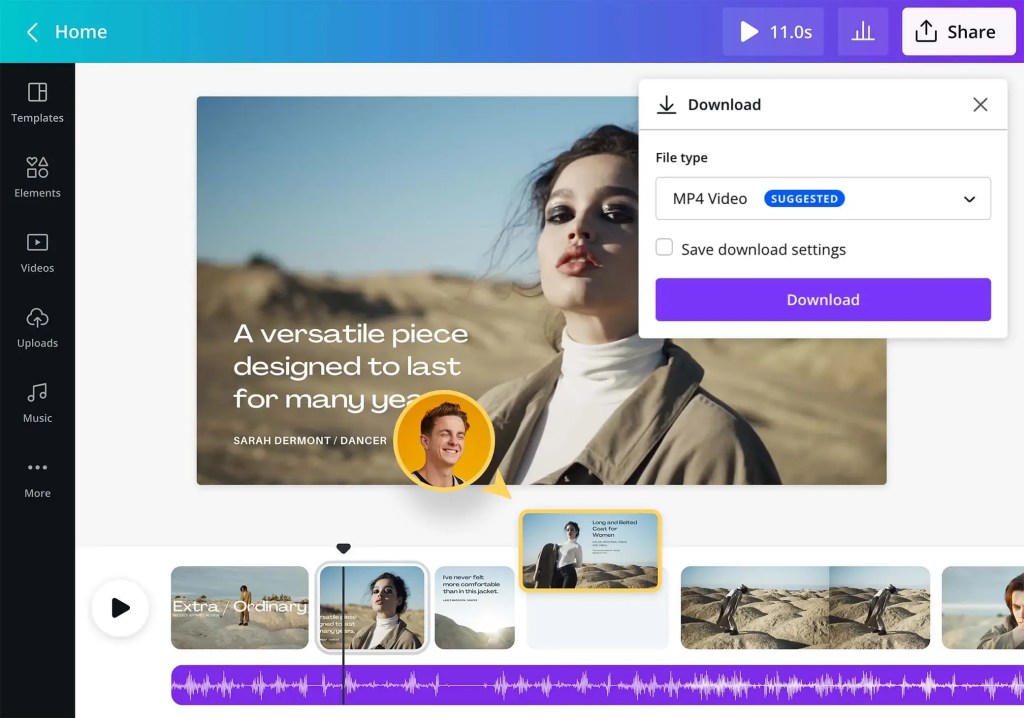
How To Create Cool Videos In Canva Pro
Canva Pro is a powerful online tool that lets you create stunning videos for your social media, website, or presentation.
Whether you want to make a promo video, a tutorial, a testimonial, or a slideshow, Canva Pro has everything you need to get started.
In this blog post, I will show you how to create cool videos in Canva Pro in four easy steps:
Canva tools
Step 1: Choose a video template or start from scratch.
Canva Pro has hundreds of video templates for different purposes and styles. You can browse them by category or search for a specific theme.
Alternatively, you can start with a blank canvas and customize it as you like.
You can see this video here below.👇👇
Step 2: Add your own media or use Canva’s library.
You can upload your own photos, videos, audio, or logos to your Canva Pro account and drag and drop them into your video project.
Or you can use Canva’s extensive library of free and premium media assets, including stock videos, music, sound effects, icons, stickers, and more.
Also, read:
3 Tips For Making Your Design With Canva Awesome.
Step 4: Edit your video with Canva tools.
Canva Pro lets you trim, crop, rotate, flip, and adjust your video clips with simple controls.
You can also add transitions, filters, animations, text, and shapes to enhance your video. You can preview your video at any time and make changes as you go.
Step 5: Download or share your video.
When you are happy with your video, you can download it in various formats and resolutions, such as GIF, the best one is MP4.
You can also share it directly to your social media platforms or embed it on your website or blog.
That’s it! You have just created a cool video in Canva Pro. Now you can use it to promote your brand, educate your audience, or entertain your followers. Have fun and be creative with Canva Pro!

 Dropner Graphic Explainer
Hello blogger, I enjoyed reading your post. I subscribed. See you often. Have a happy and bright day. ^^*
I am following your blog – just now, and thank you for the follow.