

Written By Bonny Isselt.
Starting a WordPress Blog With Hostgator?
To start a WordPress blog is one of the easiest ways to go online quickly. Hosting that provides you with the essentials is vital for your online success.
HostGator has a good uptime, which implies that HostGator is reliable, with 99,90% that your site is online. But in the future, the uptime percentage will be higher. So, it is always good to check out the level of uptime.
99,90% is less than 100%. Yeah, that is right, but do not forget that SSL, affordable pricing, and other factors are vital to succeed.

WordPress is the largest blogging platform.

The flip side is that it takes a lot of effort to create a WordPress blog that gets a lot of hits on Google.
You must know how to link and embed imagery videos and social media.
Furthermore, your content structure must be readable, logical, and relevant to the reader.
Fast, Easy, And Cheap WordPress Hosting is HostGator.
If you want to start a WordPress blog or site, you need hosting that provides the necessary tools to protect your online work.
SSL is a certificate that does it. If you don’t have that, Google puts your site out of their search engine.
https://www.websecurity.digicert.com/security-topics/what-is-ssl-tls-https
Worth reading https://www.hostgator.com/help/article/how-to-install-wordpress-with-one-click
Step 1 – First, select a plan and domain name.
One of the cheapest plans is the hatchling plan. With it, you can save money. You can install all the extras, but in the beginning phase, you may want to stick to your budget.

The domain name must reflect your content. In other words, think ahead and plan before buying a domain name.

Before you order anything, you must check if your hosting is correct. Check if the fill-in form has no errors.

Once you are ready to purchase, fill in your billing details.

Step 2 – Payment complete.
When the payment is complete, you see a completion image that looks like this.
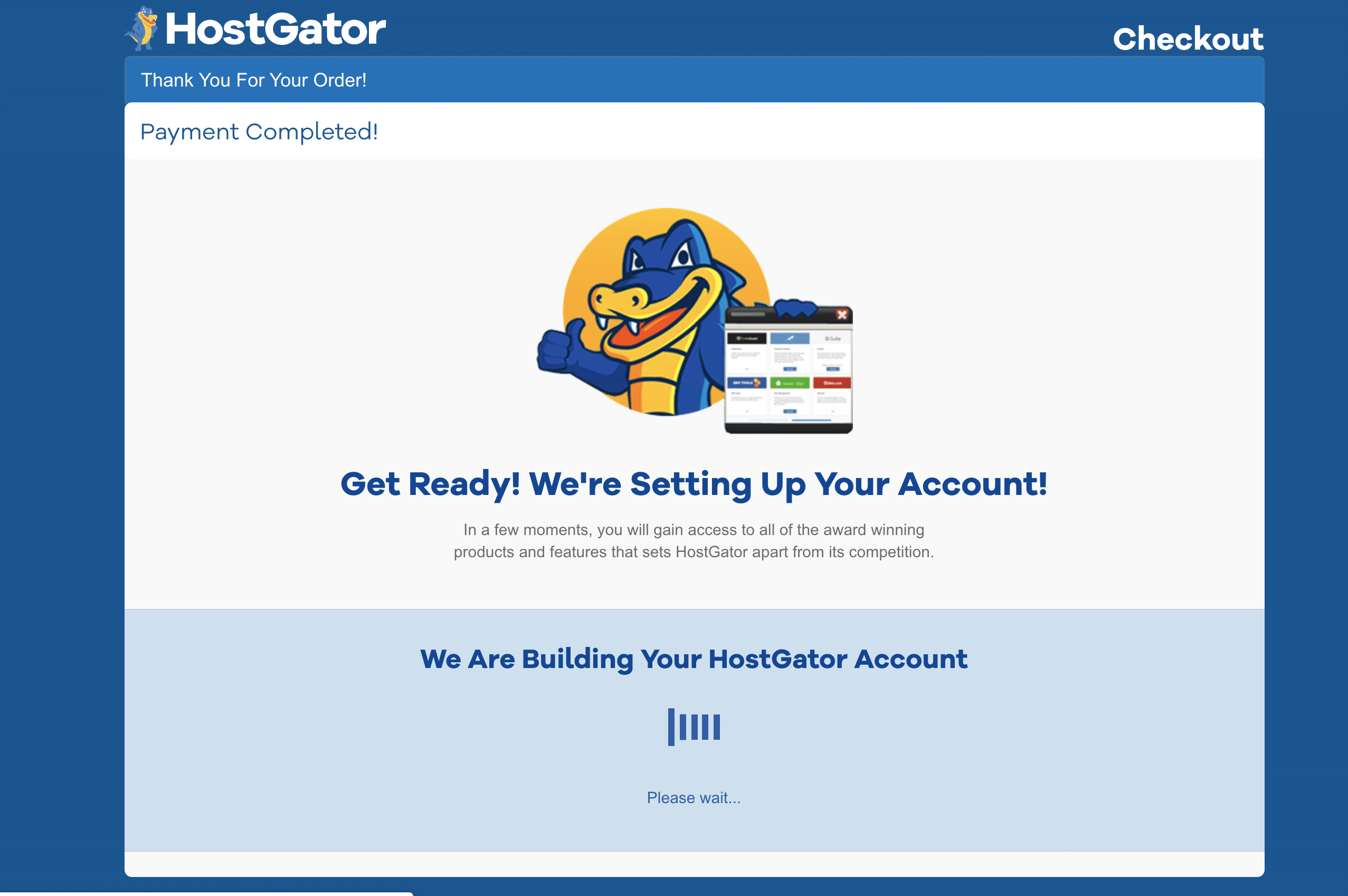
After that, you will receive an email with your username and password. Store this email and keep it safe because, with that, you can log in to your Cpanel and Hostgator customer portal.

The signup looks like this (You don’t have WordPress installed)


Step 3 – Installing WordPress.
One of the best benefits of hosting such as HostGator is the WordPress installer (quick installer). You can find the WordPress installer in the Cpanel when you log in.
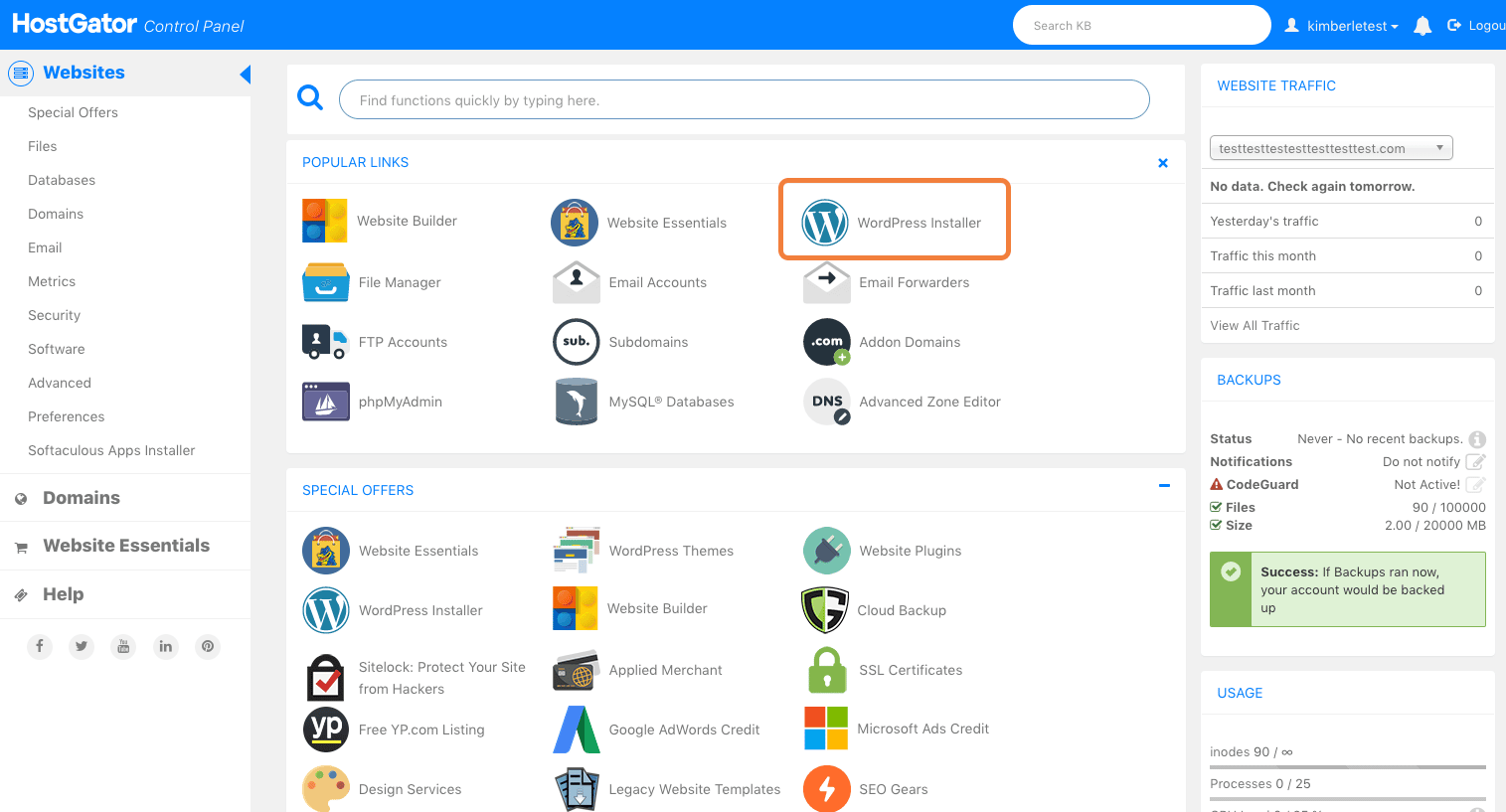
When you want to install WordPress, you must select the domain that you bought in the select plan area.

- For the Blog Title, enter the name of the website. That will appear in the header as the name of your site.
- For Admin User, enter your preferred user name.
- Your first name.
- Your last name.
- For Admin Email, enter an email address to which you want the admin password emailed. Make sure this is a working email address.
- Click to agree to the Terms of Service.
Click Install WordPress when you’re ready to proceed.
A progress bar at the top of the page will let you know when installation is complete. Once complete, you will be able to start working on your WordPress site.
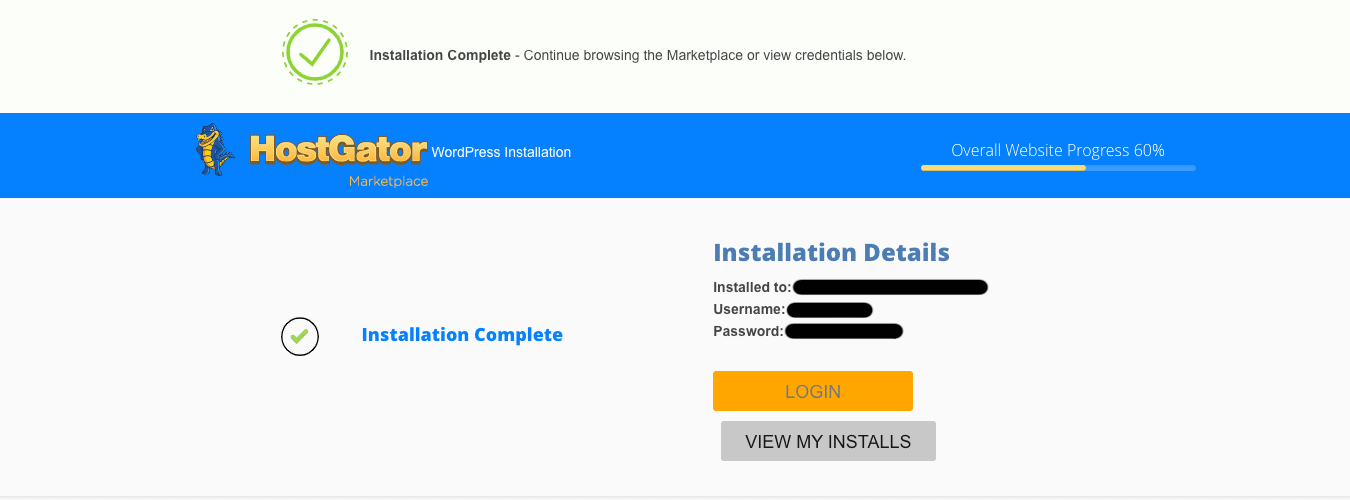
Check your email for your WordPress username and password, just as a link to your WordPress dashboard.
Step 4 – WordPress installation complete.
Now your WordPress installation is complete. So you can start on your way to publishing content with your WordPress site on HostGator.

Start a WordPress blog.
In conclusion, WordPress is the world’s most popular blogging platform. Every creator needs some help in their online journey.
HostGator has many cheap tools and ready resources to point you in the right direction.
This blog post has a lot of imagery and videos, so you are sure you are on the same path as others. (famous ones)
Related source:

Love The blog , Will give it a like and follow 🙂 May i leave a link to my website? please feel free to pop over to my website and leave a comment with your link to
All the best and good luck with your blogging !!!
Thanks a lot!
You are welcome!
🙏💙🙏
Great information 🌹
Thanks!